


Windows
Windows
Windows 10 Pro + Office 2019 Professional Plus
16.49 €
Language


Compatibility

- Description
- Information
- Instructions
Product description
Windows 10 Pro + Office 2019 Professional Plus
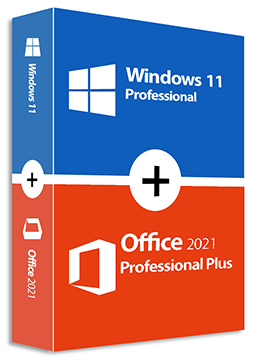
This bundle contains licences for Windows 10 Pro and Office Professional Plus 2019 – an operating system with BitLocker, Remote Desktop and Hyper-V, and an office suite with Word, Excel, PowerPoint, Outlook, OneNote, Access, Publisher and Skype for Business. Support for both Windows 10 and Office 2019 ended on 14 October 2025: home PCs can extend Windows 10 security updates until 12 October 2027 through the ESU programme, and compatible PCs can move to Windows 11 Pro free of charge. Both licences are one-off purchases with no subscription.
Key features
Everything Windows 10 Pro + Office 2019 Professional Plus can do.
System requirements
Where you can run Windows 10 Pro + Office 2019 Professional Plus.
How it works
Frequently asked questions
Product information
| Type of license: | New (license validity starts from your first activation) |
| Language: | English, Czech, Hungarian, German, Polish, Slovak |
| Compatibility: | Windows 10, Windows 11 |
| Licence validity: | Forever |
| Manufacturer: | Microsoft |
Product instructions
Windows 10 Pro + Office 2019 Professional Plus
Installation and activation
- If Windows 10 is not yet installed, download the Media Creation Tool from Microsoft's official website, create installation media (a USB flash drive or an ISO file) with your language and 64-bit or 32-bit architecture, and install Windows 10.
- Open Start > Settings > Update & Security > Activation, select Change product key and enter the 25-character Windows 10 Pro key from your e-mail. When upgrading from Home, confirm the switch to Pro and let the PC restart.
- Download the Office Deployment Tool from the Microsoft Download Center and run it to extract setup.exe and a sample configuration.xml.
- Prepare configuration.xml for Office Professional Plus 2019 (product, 64-bit or 32-bit version and language, e.g. en-us) as described in Microsoft's guide; you can enter the product key directly in the configuration (PIDKEY). Then run setup /configure configuration.xml from a Command Prompt opened as administrator.
- Start Word. If you did not put the key in the configuration, choose I don't want to sign in or create an account in the Sign in to set up Office window and enter the product key from your e-mail without dashes.
- Check activation: Windows under Settings > Update & Security > Activation, Office under File > Account.
––––> Download Windows 10 (Microsoft's official website) <––––
––––> Download the Office Deployment Tool (Microsoft) <––––
––––> Deploy Office 2019 – Microsoft Learn <––––