


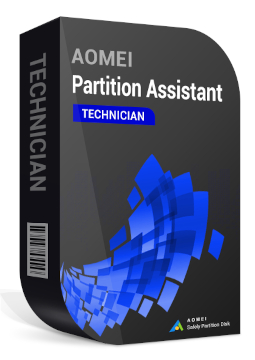
AOMEI Partition Assistant Technician unlimited equipment, 1 year
497.99 €
Language


Compatibility



- Description
- Information
- Instructions
Product description
AOMEI Partition Assistant
AOMEI Partition Assistant is a disk and partition manager for Windows that lets you extend, shrink, split or merge partitions without losing data. It migrates your system to a new SSD, converts disks between MBR and GPT and recovers lost partitions and deleted data. Depending on the edition, you can use it on a home PC, on servers or across an entire company. Change partitions and move your system without reinstalling Windows or losing data.
Key features
Everything AOMEI Partition Assistant can do.
System requirements
Where you can run AOMEI Partition Assistant.
How it works
Frequently asked questions
Product information
| Delivery Method: | Electronically by e-mail |
| Type of license: | New (license validity starts from your first activation) |
| Language: | English, Czech, Finnish, French, Dutch, Italian, Hungarian, German, Polish, Slovak, Spanish |
| Compatibility: | Windows 7 and later, Windows Server 2016, Windows Server 2019, Windows Server 2022 (64 bit), except Server Core Edition |
| Licence validity: | 12 months |
| Number of devices: | Unlimited devices |
| Manufacturer: | AOMEI |
Product instructions
AOMEI Partition Assistant
Installation and activation
- On the official AOMEI Partition Assistant download page, download the installer for exactly the edition you purchased (Professional, Server, Unlimited or Technician).
- Run the downloaded file, click Next in the wizard and follow the instructions until the installation is complete. If prompted, restart your computer.
- Launch AOMEI Partition Assistant. The registration window opens automatically; if you have closed it, click Register in the program.
- Paste the licence code from your e-mail (ideally by copying it, with no spaces before or after) and confirm the registration. The computer must be connected to the internet.
- To register a computer without internet access, confirm the offline registration prompt (Yes) after entering the code, enter your licence code and the Machine Code at aomeitech.com/get-offline-key.html?p=pa, then paste the offline key into the program and click Register.
- Once registered, all features of the purchased edition are available. You can change the interface language under Menu > Settings.
––––> Download AOMEI Partition Assistant <––––
––––> How to register your licence <––––
––––> AOMEI Partition Assistant help <––––