


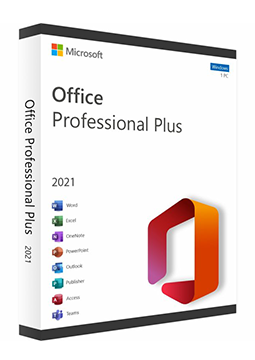
Online activation
Permanent, non-transferable
Windows
Online activation
Permanent, non-transferable
Windows
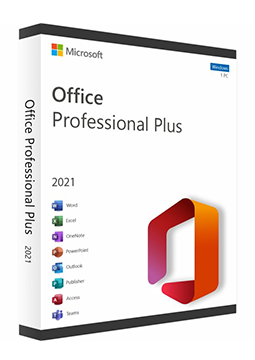
Microsoft Office 2021 Professional Plus – online activation
14.49 €
Language


Compatibility

-
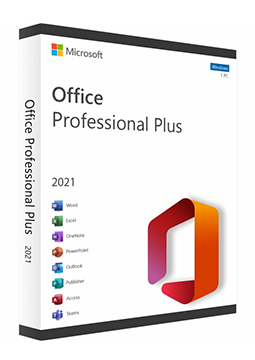
Phone activation
Permanent, non-transferable
Windows
-
-
-


- Description
- Information
- Instructions
Product description
Microsoft Office 2021
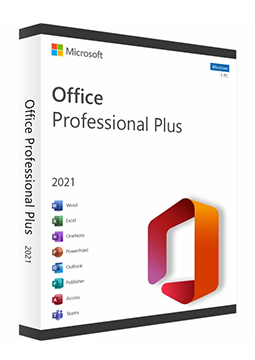
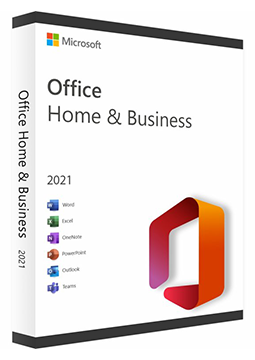
Office 2021 is an office suite with a one-time licence and no subscription. Office Home & Business 2021 includes Word, Excel, PowerPoint, Outlook, OneNote and Teams for a PC or Mac, with rights for business use, while Office Professional Plus 2021 for Windows adds Access and Publisher. Microsoft ended support for Office 2021 on 13 October 2026 – the apps keep working but no longer receive updates. Pay once and use Office without monthly fees.
Key features
Everything Microsoft Office 2021 can do.
System requirements
Where you can run Microsoft Office 2021.
How it works
Frequently asked questions
Product information
| Type of license: | New (license validity starts from your first activation) |
| Activation type: | online (in the Office application) |
| Language: | English, Czech, Hungarian, German, Polish, Slovak |
| Compatibility: | Windows 10, Windows 11 |
| Licence validity: | Forever |
| Number of devices: | 1 device |
| Manufacturer: | Microsoft |
Product instructions
Microsoft Office 2021
Installation and activation
- Office Home & Business 2021 (Windows and Mac): go to setup.office.com, sign in with your Microsoft account or create one, and enter the product key from your e-mail without hyphens.
- Follow the prompts to finish redeeming the key – the licence is added to your Microsoft account. Then install Office from that account; you can reinstall it later with the same account without the product key.
- Start Word, accept the licence agreement and sign in with the same Microsoft account – Office activates. On a Mac, sign in to Word's welcome window with the account the licence belongs to.
- Office Professional Plus 2021 (Windows): download the Office Deployment Tool from the Microsoft Download Center, extract it and, in a Command Prompt run as administrator, install Office with setup /configure configuration.xml (prepare the configuration file as described in Microsoft's guide).
- Start Word, select I don't want to sign in or create an account in the Sign in to set up Office window and enter the product key without hyphens.
- You can check the activation status in any Office app under File > Account.
––––> Redeem your product key (setup.office.com) <––––
––––> Where to enter your Office product key (Microsoft) <––––
––––> Download the Office Deployment Tool (Microsoft) <––––