


Windows / Mac OS
Android / iOS
Windows / Mac OS
Android / iOS
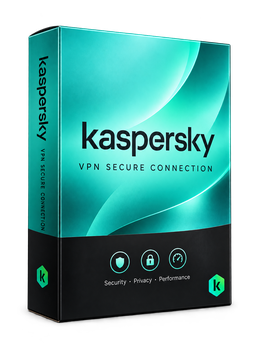
Kaspersky VPN Secure Connection 5 devices, 1 year
21.49 €
Language


Compatibility


- Description
- Information
- Instructions
Product description
Kaspersky VPN Secure Connection
Kaspersky VPN Secure Connection encrypts your internet connection, hides your IP address and protects your data even on risky public Wi-Fi. The unlimited version has no daily data cap and offers more than 6,000 servers in over 120 locations. The app is available for Windows, macOS, Android and iOS. One subscription for computers, phones and tablets – just sign in with the same My Kaspersky account.
Key features
Everything Kaspersky VPN Secure Connection can do.
System requirements
Where you can run Kaspersky VPN Secure Connection.
How it works
Frequently asked questions
Product information
| Delivery Method: | Electronically by e-mail |
| Type of license: | New (license validity starts from your first activation) |
| Language: | English, Czech, Hungarian, German, Polish, Slovak, Swedish |
| Compatibility: | Android, iOS, macOS, Windows |
| Licence validity: | 12 months |
| Number of devices: | 5 devices |
| Manufacturer: | Kaspersky |
Product instructions
Kaspersky VPN Secure Connection
Installation and activation
- Download the Kaspersky VPN app from the official download page (link below); on a phone or tablet, install it from your app store.
- Run the installer and follow the wizard.
- On the My Kaspersky website (my.kaspersky.com), sign in or create an account, open Subscriptions, enter the licence key from our e-mail and click Add.
- Sign in to the Kaspersky VPN app with the same My Kaspersky account – connecting the device to your account unlocks the unlimited version.
- Turn the VPN on and choose a server location, or let the app connect to the fastest server.
- On your other devices, install Kaspersky VPN and sign in with the same account – up to the number of devices your licence covers.
––––> Download Kaspersky VPN <––––
––––> Kaspersky guide: switching to the unlimited version with an activation code <––––